AI Printables: From Prompt to Print-Ready PDF
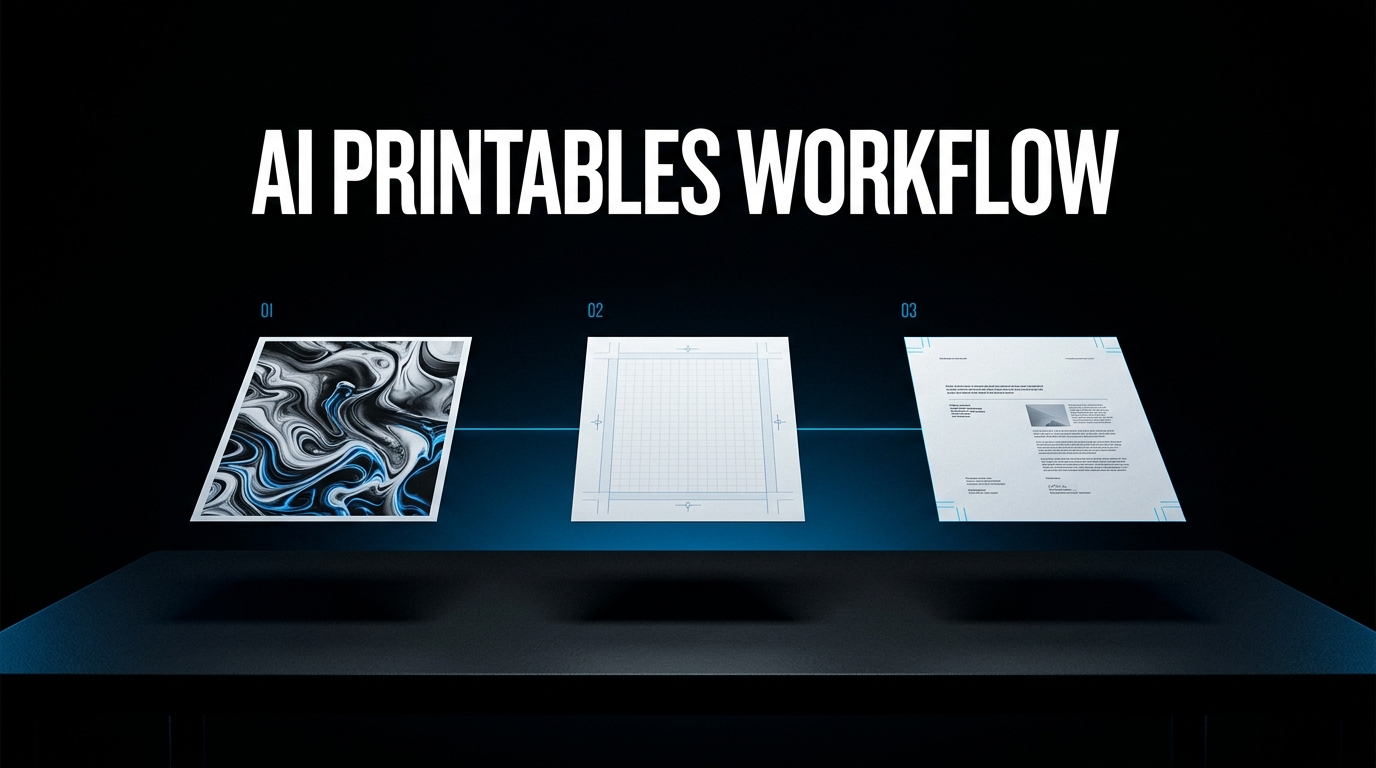
Most advice on AI printables stops at the pretty image. Someone generates a planner page and discovers at the print stage that the edges are cut off or the file was never allowed to be sold. The image is the easy part. The workflow around it is where printable projects quietly fail. After reading Canva's help pages on licensing, file types and bleed, and the terms of OpenAI, Google and Midjourney, what stands out is that three small decisions matter more than the choice of AI model: where the design is assembled, which assets go into it, and which PDF you export. This guide walks through that path from prompt to print-ready file, and flags the points where the official pages say less than blog posts claim.
If you're short on time, here's the key takeaway: use an AI image tool (ChatGPT Images, Nano Banana, Ideogram or Midjourney) only to make the artwork, then build the actual printable in Canva so you control layout, text and size. Export with PDF Print, not PDF Standard, when the file will be printed. And know what kind of product you sell: Canva allows Pro content in a finished printable the buyer only prints, but not in an editable template sold as a PDF.
Why This Matters for Printable Sellers
A printable is a file a buyer prints at home or at a print shop, so the quality bar is physical. A blurry edge or a missing margin shows up on paper, and a refund request follows. One wrong template also passes its flaw to every variation.
This is for creators who already know what a printable is and want a repeatable process: planners, wall art, worksheets, trackers. It covers the licensing points that decide what you may sell and the export settings that decide whether the file prints cleanly. It does not promise sales: that depends on the niche, the listing and the buyer.
Which AI Tool Should Make the Artwork?
Any current image tool can make printable artwork. ChatGPT Images and Google's Nano Banana models are the easiest places to start, Ideogram helps when lettering matters, and Midjourney suits stylized art. Whichever you pick, keep the text out of the image and build the page in Canva.
That ranking comes from independent comparisons, not from the tools' makers, and they disagree on details. Recent comparisons put GPT Image, the model behind ChatGPT Images, and Google's Nano Banana models at or near the top for following prompts and editing. Ideogram is often named best at lettering, though some reviews give that title to GPT Image. Midjourney is still praised for stylized, painterly looks, but the same reviews flag weak text rendering, and one notes there is no meaningful free tier. I found no official comparison, so test two tools with the same prompt.
That split between artwork and layout is deliberate. Newer models handle text far better than they used to, but a planner heading that must read correctly still belongs in an editable layer, where a typo takes seconds to fix. For a closer look at image models, see Flux versus Nano Banana 2 for creators. For printables the practical rule is simple: generate backgrounds, borders, icons and illustrations, then assemble everything in one editor so the page size and margins are yours.
What Do the Licenses Let You Sell?
Each tool sets its own rules. OpenAI's terms say you own the output of ChatGPT Images, and Google says it will not claim ownership of content its services generate. Midjourney says you own your assets, with a plan condition for larger companies. Ideogram points you to its terms.
OpenAI's Terms of Use, effective January 1, 2026 for users outside the EEA, Switzerland and the UK, say that you own the Output and that OpenAI assigns you its rights in it. They warn that output may not be unique and forbid presenting it as human-generated when it was not. The EEA, Switzerland and the UK have a separate version, so read the one that applies to you.
Google's Terms of Service say that for services that let you generate original content, Google will not claim ownership of it. The Gemini API terms add that Google may generate similar content for others and that you are responsible for how you use the result. I did not read the separate terms for Flow or for the Gemini app's image features, so check the ones that apply to the product you use.
On the Midjourney side, the terms of service say you own the assets you create with the service. The same page adds that a company earning more than 1,000,000 US dollars a year must be on a Pro or Mega plan to own its assets, and that Midjourney keeps a broad license to the content you produce. Ideogram's FAQ does not answer ownership at all and tells users to read its terms before commercial use. I could not open the full Ideogram terms in this session, so check them yourself before you build a product line on it. The same FAQ says that on the free plan everything you generate is public.
Canva has the most detailed rules, and one distinction in them is easy to get wrong: templates versus finished products. Canva says you can only sell original designs and that you cannot sell Canva content on its own. It defines a template as a design meant to be edited by the buyer, such as a wedding invitation with blanks to fill in. You cannot sell templates containing Pro content as a PDF or other file types, flattened or not. Pro content in a template is allowed only when the template is shared as a Canva template link.
A finished product is different. Canva's own example is greeting cards designed for customers to print at home, which they cannot edit, made with Free and Pro content: that is allowed. A planner page that the buyer only prints and writes on is closer to that case than to a template. Two limits still apply. Selling digital clipart made from Canva elements is not allowed, and Pro images used unedited in an e-book must stay under a 480,000 pixel limit. Canva also says AI-generated images from its tools are not covered by its Content License Agreement and that copyright in AI-generated work is unclear in many countries, so you may not own it. None of this covers marketplace rules, which are separate: for Etsy, see the guide on selling AI printables on Etsy.
How Do You Go From Prompt to Print-Ready PDF?
Work in five steps: write a prompt for artwork only, pick the best output, build the page in Canva at the final paper size, keep every element original or Free-licensed, then export with PDF Print. Check the file at 100 percent zoom before you list it.
Step 1, the prompt. Describe the artwork, the style and the space you need to leave empty. Skip any words you want printed.
Step 2, the selection. Choose the image, upscale it, and edit what the model got wrong.
Step 3, the layout. Create the Canva design at the real paper size, import the artwork, and add text, lines and fields as editable elements. Keep important content inside the margins.
Step 4, the assets. Check what kind of product you are selling. A finished printable that the buyer only prints can use Free and Pro elements inside an original design. An editable template sold as a PDF cannot contain Pro content, and loose Canva elements sold as clipart are not allowed.
Step 5, the export. Canva describes PDF Standard as 96 dpi for screens and PDF Print as 300 dpi, with bleed, crop marks and a choice of RGB or CMYK. For a file that will be printed, choose PDF Print.
Do You Need Bleed and Crop Marks?
Only when the design runs to the edge and will be trimmed. Canva sets bleed at 0.125 inches (3.175 mm) on all sides, fixed, and says products where ink does not reach the edge need none. Most home-printed planners keep a white margin, so bleed rarely applies.
Decide the use case before you design. A planner page with a margin does not need bleed. A poster, card or full-bleed wall art meant for a print shop does, and the shop will usually say which settings it wants. Crop marks appear once bleed is turned on in the Canva export. Test-print one page before you list anything, because colors on screen and on paper rarely match.
What I Like / What I Don't Like
What I like: Splitting artwork from layout keeps the AI part replaceable and the printable editable. Canva's export options are explicit about resolution and bleed, which removes guesswork. The ownership statements of OpenAI and Google are short and plain, and Midjourney's is plain too, with a plan condition only for larger companies.
What I don't like: Canva's line between templates and finished products is easy to confuse, and the penalty is a non-compliant product. Ideogram does not state ownership in its FAQ, and the free plan makes every generation public. And copyright in AI output remains unclear in many countries, which no tool can settle for you.
Bottom Line
Make the artwork with the AI image tool you prefer, build the page in Canva at the real paper size, check whether your file is a finished printable or an editable template before you use Pro content, and export with PDF Print. Read each tool's terms for your own situation, because they change and none of this is legal advice.
Who this helps: creators who want a repeatable printable process rather than one lucky file. Who should pause: anyone planning to sell raw AI images unedited or to sell Canva elements as clipart or Pro content inside editable templates delivered as PDFs. For the wider picture, the guide to digital products with AI shows where printables fit, and the piece on Etsy SEO for AI printables covers how to list them.
Join the newsletter for more practical AI workflows and digital product systems.